Mirror PDF: Flip PDF Pages
Flip PDF pages left to right for a mirror image, or top to bottom. Text and graphics stay sharp, and the text stays selectable.
 Select a PDF file
or drop it anywhere on this page, or paste
Opens in your browser. Nothing is uploaded.
Mirror PDF: Flip PDF Pages, free and private
Mirror a PDF to flip its pages left to right, so the text reads backwards like a reflection, or top to bottom. A mirrored PDF is what you need for iron-on and heat transfer paper, sublimation prints, window decals, backlit film, and printing on the back of transparent sheets.
The pages are flipped without being redrawn as pictures, so text and graphics stay sharp and the text stays selectable. The tool runs in your browser, so the PDF is never uploaded.
How to mirror a PDF
- 1
Add your PDF
Press Select a PDF file or drop the PDF onto the page. The tool works on one file at a time.
- 2
Choose the direction
Left to right makes a mirror image and is the right choice for transfers and decals. Top to bottom flips the page upside down as a reflection. The preview flips as you choose, and the arrows below it page through the file.
- 3
Pick the pages
All pages are mirrored by default. Pick Odd, Even or Custom under Pages to mirror to flip only some of them, for example only the design pages of a print file.
- 4
Press Mirror PDF and download
Press Download PDF to save the file ending in -mirrored.pdf. Your original is not changed.
Why use PDFToolz for this
Sharp at any size
Each page's content is flipped with a PDF transform instead of being turned into an image, so text, logos and vector artwork print as crisply as the original.
Text stays selectable
The flipped text is still real text. You can search it and copy it, and the file stays about the same size.
Comments are mirrored too
Highlights, drawings, stamps and clickable links are mirrored with the page, so they still sit over the same words.
Private and free
The PDF is changed on your device with pdf-lib. There is no upload, account, watermark or page limit.
When to mirror a PDF
Anything that is printed on one side and seen from the other needs a mirrored print, so it reads the right way round once it is turned over or pressed onto fabric.
- Iron-on and heat transfer paper for T-shirts and tote bags.
- Sublimation prints for mugs, shirts and coasters.
- Window decals and static clings read from outside the glass.
- Backlit film, overhead transparencies and screen printing films printed on the back.
- Phone teleprompters and car head-up displays that reflect the screen.
Mirror, flip or rotate
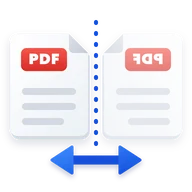
Mirroring left to right swaps the left and right sides, so text reads backwards. Mirroring top to bottom swaps the top and the bottom, so the page looks upside down and backwards, like a reflection in water. Neither is the same as turning the page.
To fix a page that is upside down or sideways, use Rotate PDF instead. A 180 degree turn looks like a flip at first glance, but the text still reads forwards.
Printing a mirrored PDF
If you mirror the PDF here, switch off any mirror or flip option in the printer dialog or on the transfer paper's print settings, or the page is flipped twice and comes out the right way round. Print a test page on plain paper first and check that the text reads backwards.
Filled-in form fields, text box comments and sticky notes move with the page but keep reading the normal way, so they stay legible. Run Flatten PDF first if they should be mirrored with the rest.
Frequently asked questions
Add the PDF, keep Left to right selected, press Mirror PDF and download the result. It is free, has no page limit and the file never leaves your device.
Choose Left to right. That flips each page horizontally into a mirror image. Choose Top to bottom to flip the pages vertically.
Yes. The pages are flipped with a PDF transform, not turned into images, so text and vector graphics stay sharp and the text can still be selected and searched.
Yes. Under Pages to mirror, pick Odd, Even or Custom and enter pages such as 1, 3-5. The other pages are copied unchanged.
To change the page order, use Organize PDF. To turn pages that are sideways or upside down, use Rotate PDF. This tool only mirrors the content of each page.
Last reviewed . See how we build and test our tools, or report an error.